Hey everyone!
This time around I have been looking a bit into AI and what options there are for personal, local use.
As a long-term plan, I might eventually want to incorporate it into the homelab, but for now I am just testing things out in my own home-PC.
First things first, all the links I used to set this up can be found at the bottom of the page.
Alright then, now to download GPT4All from it’s github link. It might look a bit intimidating at first, but if you just scroll down a little in the github page, you’ll see this view:
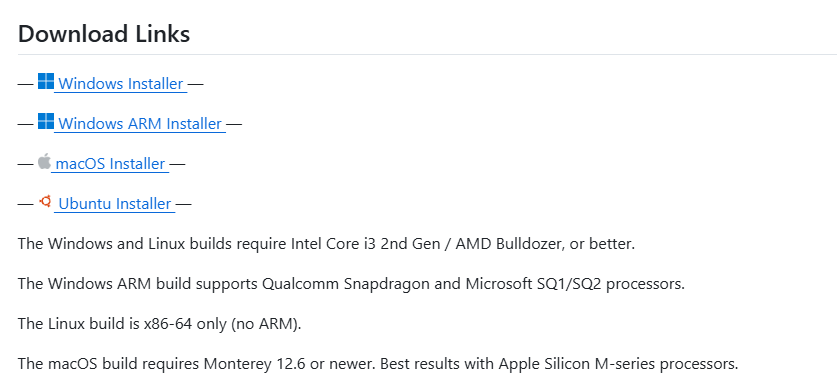
Then it’s just a matter of choosing the correct installer for you.
After the download is over, go ahead and install it. You can now open the application and start chatting, if you’d like!
However, it won’t be the smartest of AI models. To get something more advanced, you’ll need to add a model to the application.
To do this, follow these steps:
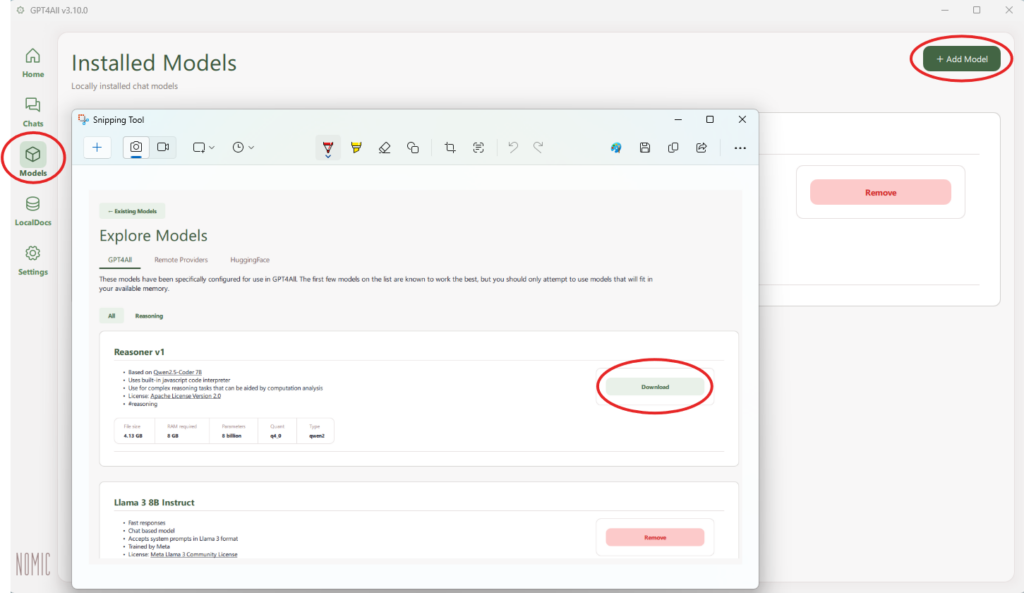
-Click on the “Models” tab on the left-hand-side of the interface.
-Select “+Add Model” from the top right corner.
-Choose which model you would like to add, and download it.
I personally downloaded “Llama 3 8B Instruct” and used it for testing.
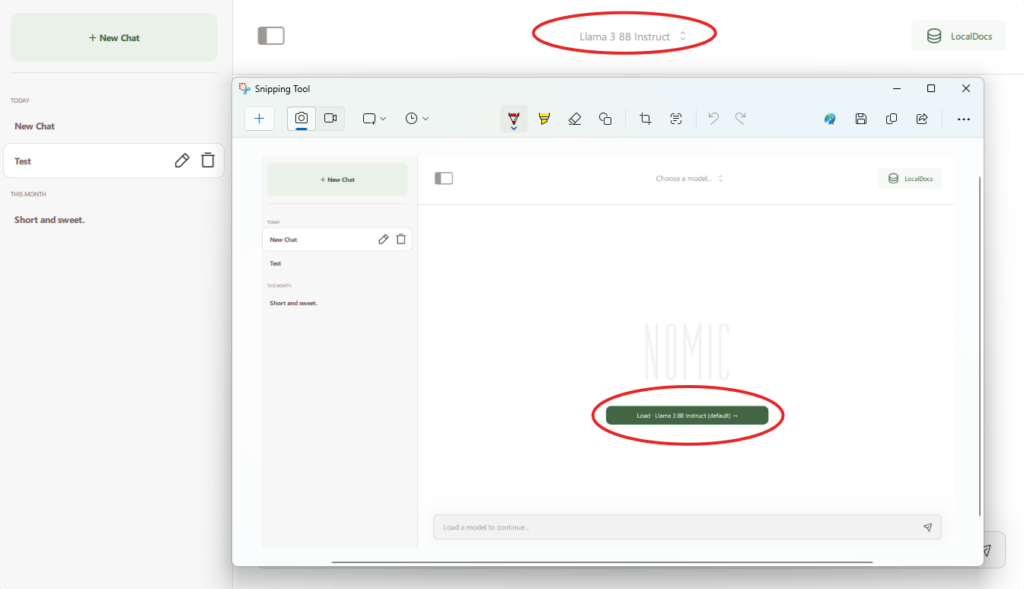
Now, when you start a new chat it will ask which model to use, and you can also change the model currently in use from the top-middle section of the active chat.
If you’re still not getting answers at the level you’d like, or you want to use specific sources for studying or for other reasons, there is a way to add your own sources (pdf files and documents) for this local AI to use.
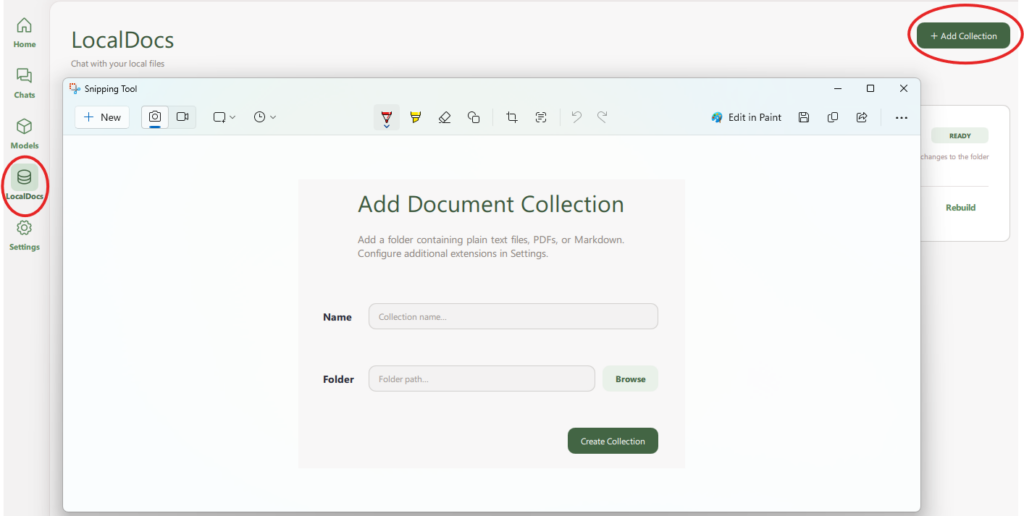
First go to the “LocalDocs” tab on the left-hand-side.
Once you’re there click on “+Add Collection”.
It will then ask you to name the collection and choose a folder for it to access. Note! The folder must be an existing folder, the application won’t create one for you.
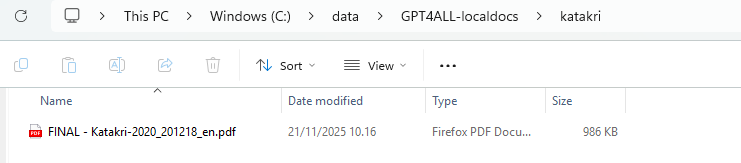
All that’s left now is finding the folder you chose, and adding whatever pdf you want into the folder. It will take some time to process the added files.
I tried it out with a Katakri manual, for example:
Now that the localdoc is set-up you just need to add it to the chat and you’re good to go! In the “Chats” tab, simply click on “LocalDocs” on the top right and select the localdoc you just created.

You will know it’s been selected by the “1” appearing next to the “LocalDocs” and the square being filled next to the chosen localdoc. If you have multiple, you can choose more than just one to be used as sources for the chat.
Keep in mind that if you do not select a localdoc that the chat will not use it automatically! You have to always add it manually.
That has been all this time around. Thank you for reading!
Links:
GitHub – GPT4All: Run Local LLMs on Any Device. Open-source and available for commercial use.
GPT4All website – GPT4All